MoEngage RCS
Send RCS from MoEngage through Azmarq Omni. This is an HTTP connector with the published RCS path — not a new POST /v1/moengage route.
Host
https://api.azmarq.com
$API_BASE_URL for every send.
Auth
apikey
Header on every call. Not Bearer.
Integrations
5 apps
3 custom · 3 HTTP connectors. Apps and custom connects add no new /v1 send path.
Find an integration
Showing 11 of 11.
- ShopifyappAzmarq Sender: abandoned carts, order updates, WhatsApp + SMS + RCS.No POST /v1/shopify
- Google SheetsappWorkspace add-on. Import and run messaging workflows in a spreadsheet.No Sheets HTTP route
- Zoho CRMappAzmarq for Zoho CRM on Zoho Marketplace. Send WhatsApp to CRM records.No POST /v1/zoho
- IntegratelyappNo-code connector. Triggers in other apps send through Azmarq.No Integrately HTTP route
- Pabbly ConnectappWorkflow app. Pabbly triggers send SMS, WhatsApp, or RCS via Azmarq.No Pabbly HTTP route
- SalesforcecustomCustom connect. Enable with onboarding — not a public AppExchange send API.No POST /v1/salesforce
- LeadSquadcustomCustom connect. Enable with onboarding. Live sends stay on Omni HTTP.No POST /v1/leadsquad
- WebEngagecustomCustom connect. Partner payloads are on the channel guides, not this page.No POST /v1/webengage
- CleverTap SMSHTTPHTTP connector. Configure CleverTap to POST Azmarq SMS with apikey.CleverTap connector
- CleverTap WhatsAppHTTPHTTP connector for WhatsApp templates from CleverTap campaigns.CleverTap connector
- MoEngage RCSThis pageHTTPHTTP connector. Configure MoEngage as an RCS provider with apikey.MoEngage connector
Introduction
is a mobile engagement and communications provider enabling enterprises to intelligently personalize their two-way marketing and customer care interactions across multiple channels.
✅ Prerequisites
- Ensure you have access to your dashboard.
- Have the API key for your account.
⚙️ Configure as an RCS Connector (Service Provider)
Perform the following steps to configure as a connector:
- In the MoEngage UI, navigate to: Settings → Channels → SMS/RCS → Sender configuration.
- On the RCS tab, click + Add RCS Sender.
- Click the tile.
- On the Sender Details page, add the following details:
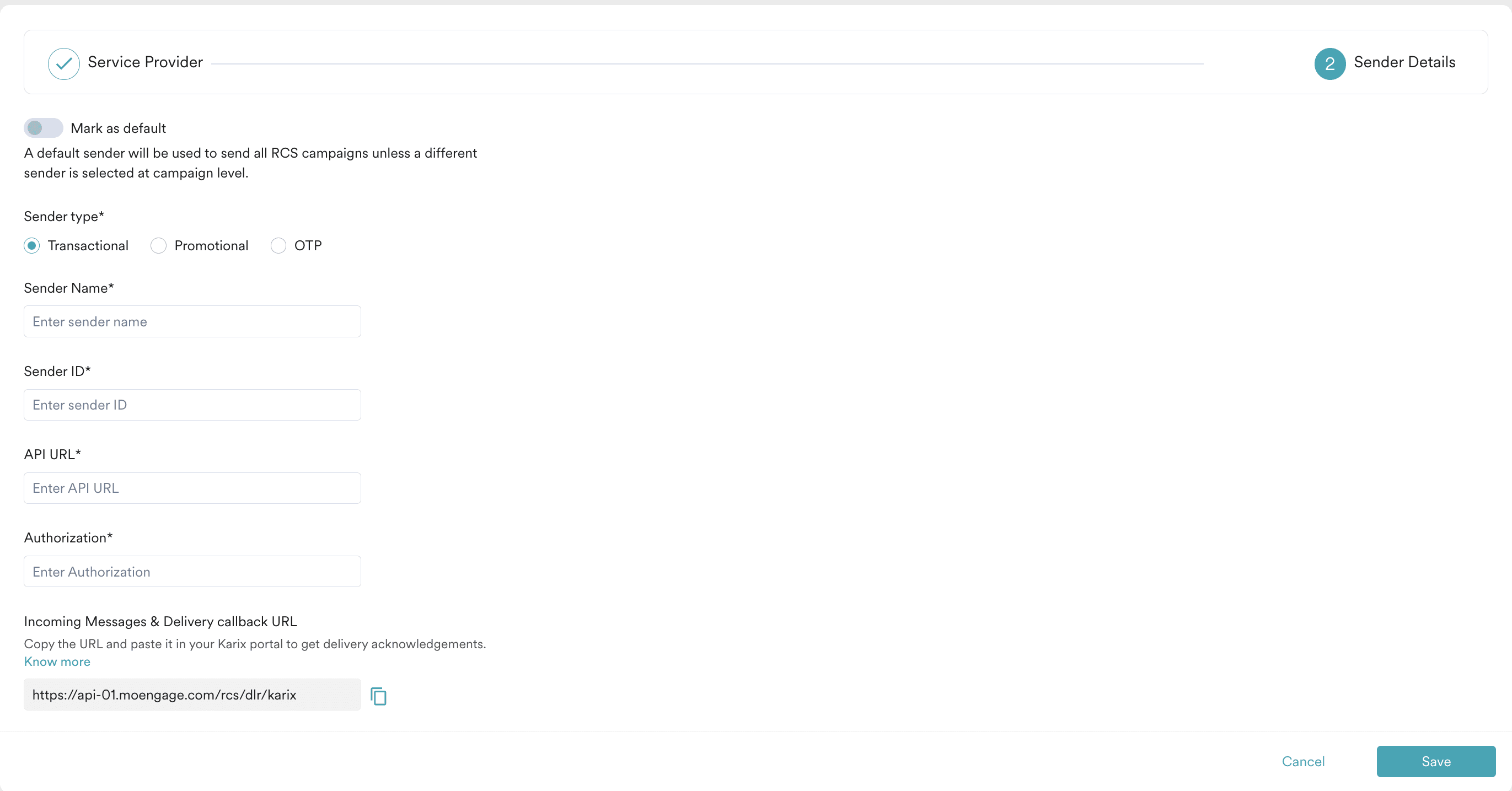
Field Description Mark as default Turn this toggle on to mark the sender as the default sender for the service provider being configured. If marked as default, this sender will be used to send all RCS campaigns from MoEngage unless you select a different sender while creating the campaign. Sender type Select the sender type: - Promotional: For brand promotions, deals, or user engagement.
- Transactional: For alerts about transactions, security, or other transactional info.
- OTP: For sending OTPs.
Sender Name Enter the name of the sender. This identifies the readable sender name used while creating a campaign or alert. Sender ID Enter the sender ID. This is the RCS agent/bot ID RBM uses to send RCS messages to users. Authorization The bearer token used for authorization. Obtain this token from the team. - Click Save to save this sender configuration.
- Incoming Messages & Delivery Callback URL: Copy this URL from the MoEngage UI and email it to the team for configuration.